
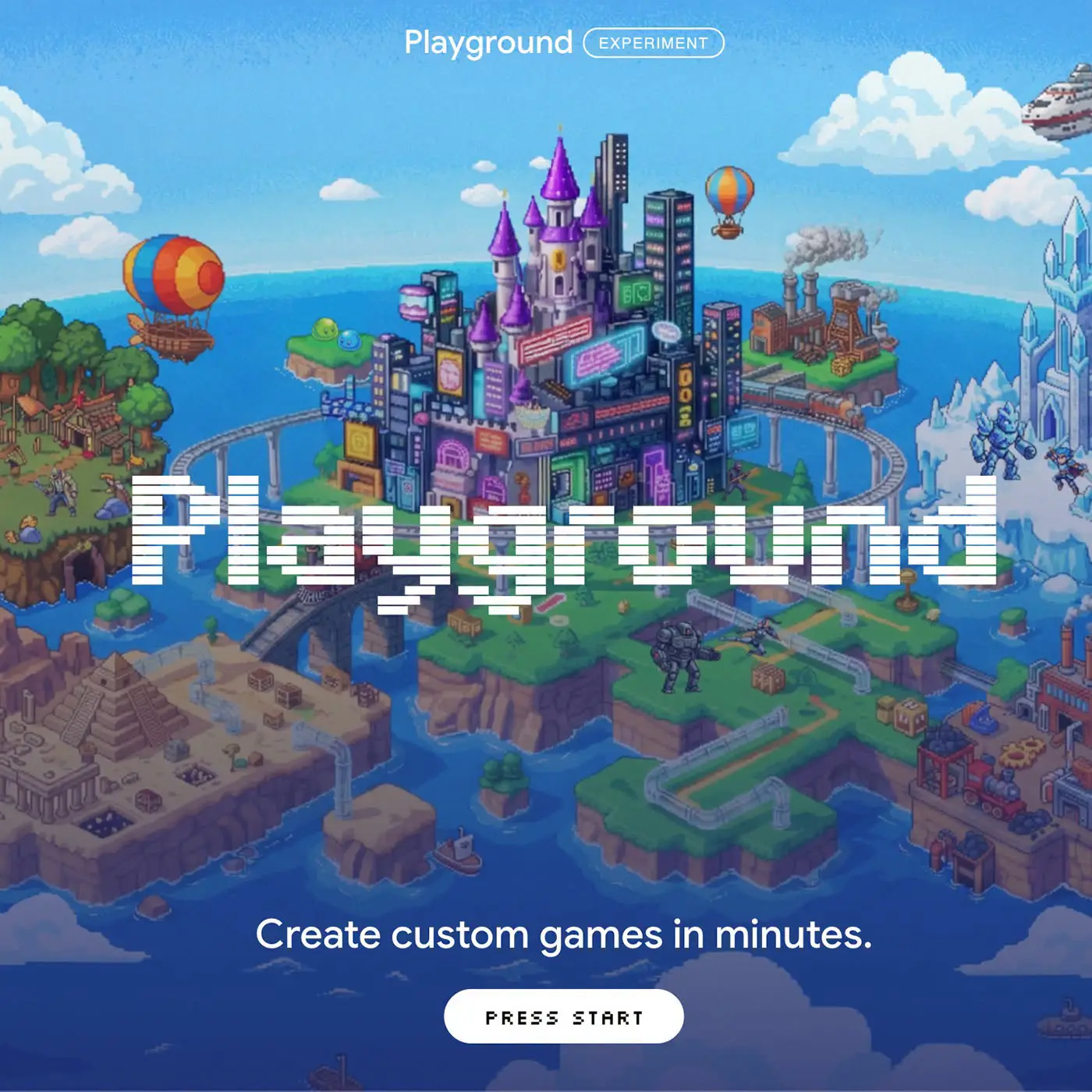
Google Playground is an experimental platform that lets you create, play, and share games using text prompts. Google announced Playground on October 7, 2026, with the aim of making game creation accessible without coding experience.
If you have a game idea but have never written code, the appeal is easy to understand: describe the experience you want, then work on the result through conversation.
This guide explains the basics, access requirements, and a sensible approach to your first project.
Information checked on October 9, 2026. This article draws on official documentation; the example prompts are suggestions, not results from hands-on testing.
What Is Google Playground?
Playground is Google’s AI game-creation platform at playground.google. You describe a game in everyday language, and the platform generates a playable version that you can customize through further prompts. You do not need to write the initial code yourself.
For a beginner, I would approach it as a place to explore a small game idea. Start with one activity, such as collecting objects or solving a puzzle. A clear, limited concept gives you something specific to evaluate.
How Does Google Playground Work?
Google describes a conversational workflow: start from a blank canvas, a starter prompt, or guided support; generate a game; then request changes to its rules, characters, physics, or environment. You can test the result as you develop it.
Your role is to make the design decisions. Think about what the player does, what makes that action interesting, and how a round ends.
For example, “make a fun space game” leaves many decisions open. A more useful starting point would specify:
- The objective: Collect ten stars.
- The controls: Move left and right.
- The challenge: Avoid falling asteroids.
- The ending: Win after collecting enough stars; lose after three collisions.
Those details turn an idea into a set of rules you can check during play.
What Can You Do With Playground?
The main activities include creating and revising games, browsing community creations, and sharing your own work. Browser-based gameplay makes the platform accessible on phones and laptops.
The platform uses Google Play Games profiles for community features, including leaderboards and multiplayer experiences. Google documents several multiplayer and leaderboard limitations: multiplayer is an early preview, and leaderboards require publicly listed single-player games.
You can also export your game’s source files through the Creation Studio’s Export option. The ZIP includes HTML, JavaScript, CSS, and generated assets.
For a first project, focus on a single-player game with a short round. This makes it easier to judge the controls, scoring, and difficulty before adding more features.
Who Can Access Google Playground?
As of October 9, 2026, Playground is available to users aged 18 or older in the United States. Google’s Playground eligibility requirements also apply to subscription benefits, so a paid plan should not be treated as a way to bypass regional eligibility.
If you are outside the supported region, check the official eligibility information before subscribing specifically for this tool.
Is Google Playground Free?
According to Google’s access and free-tier guidance, playing community games is free. Game creation has limited tokens that refresh weekly, and free creation access is being released through a waitlist. Eligible Google One AI subscribers can receive immediate creation access and higher limits.
Before paying, decide what you want to accomplish. Trying one small idea and producing several games each week are different needs. Check the allowance shown for your account and the current subscription terms, then choose based on your expected use.
How to Start With a Simple Game Idea
1. Check Your Account’s Access
Visit playground.google, sign in, and check your creation access.
2. Write a Small, Specific Brief
Choose one objective, a few controls, and a clear ending. Avoid combining several game genres in your first attempt.
Here is an illustrative prompt you can adapt:
Create a simple 2D game called Star Catcher. The player moves a basket left and right to catch falling stars. Each star adds one point. Missing three stars ends the round. Use a dark blue background, bright yellow stars, a visible score counter, and a restart button. Include keyboard controls and large touch buttons.
This prompt is an untested example. It describes a target experience; the generated result still needs checking.
3. Generate, Then Play a Complete Round
Enter your description on the creation screen and select Generate.
Try to reach both the win and loss conditions, if your game has them. Check whether the score changes correctly, whether the instructions match the controls, and whether restarting resets the game.
A visually appealing opening screen does not tell you whether a full round works.
4. Request One Change at a Time
Follow-up prompts let you revise the generated game. For your own testing, keep each request narrow so you can identify its effect.
Examples to adapt:
Make the falling stars slower during the first 20 seconds.
Increase the size of the touch controls without changing the scoring rules.
Show a short explanation of the controls before the round starts.
Play again after each change. Record the prompt and what you observed if you want to compare versions or write a tutorial later.
How Does Sharing Work?
Google’s game visibility settings let you choose who can access your creation:
| Setting | Who can access the game? |
|---|---|
| Draft | The creator, while the game is in development. |
| Private | Only the creator can see and play the compiled game. |
| Unlisted | Anyone with its link; it stays out of public discovery. |
| Listed / Discoverable | Other users can find it publicly. |
Public listing requires safety screening.
Before sharing, ask someone to try the game without coaching. If they cannot understand the goal or controls, improve the instructions before adding more features.
Is Playground the Same as Google AI Studio?
These are separate tools. Playground focuses on creating and playing games. As explained in the Google AI Studio quickstart, AI Studio is a broader environment for trying AI models, experimenting with prompts, and working with the Gemini API. Its documentation also uses the word “Playground” for a prompting interface, which can cause confusion.
Check the website address when following a tutorial: this guide covers playground.google.
What About Unity Spark?
Google and Unity have announced Unity Spark as an upcoming expansion of the creation experience, with plans for more advanced mechanics and high-fidelity 3D capabilities. Unity’s announcement places that expansion later in 2026. Those are announced plans, so check its release status before relying on them for a project.
What Should Beginners Keep in Mind?
Treat your first generated game as a version to evaluate. My recommendation is to check four things before sharing:
- Can a new player understand the objective?
- Do the controls respond as expected?
- Do scoring, game-over conditions, and restarting work?
- Are text and buttons usable on the devices you want people to use?
Avoid judging success only by how closely the artwork matches your idea. The rules and controls determine whether someone can enjoy playing.
For a first session, aim for one understandable game with one complete round. Once that works, choose the next improvement based on what you noticed while playing.
Related posts
What Is ChatGPT and How Does It Work? A Beginner’s Guide
ChatGPT is an AI assistant from OpenAI that responds to questions and instructions in everyday language. You can use it to explain a topic, brainstorm…